Artifact Libraries & Scanning
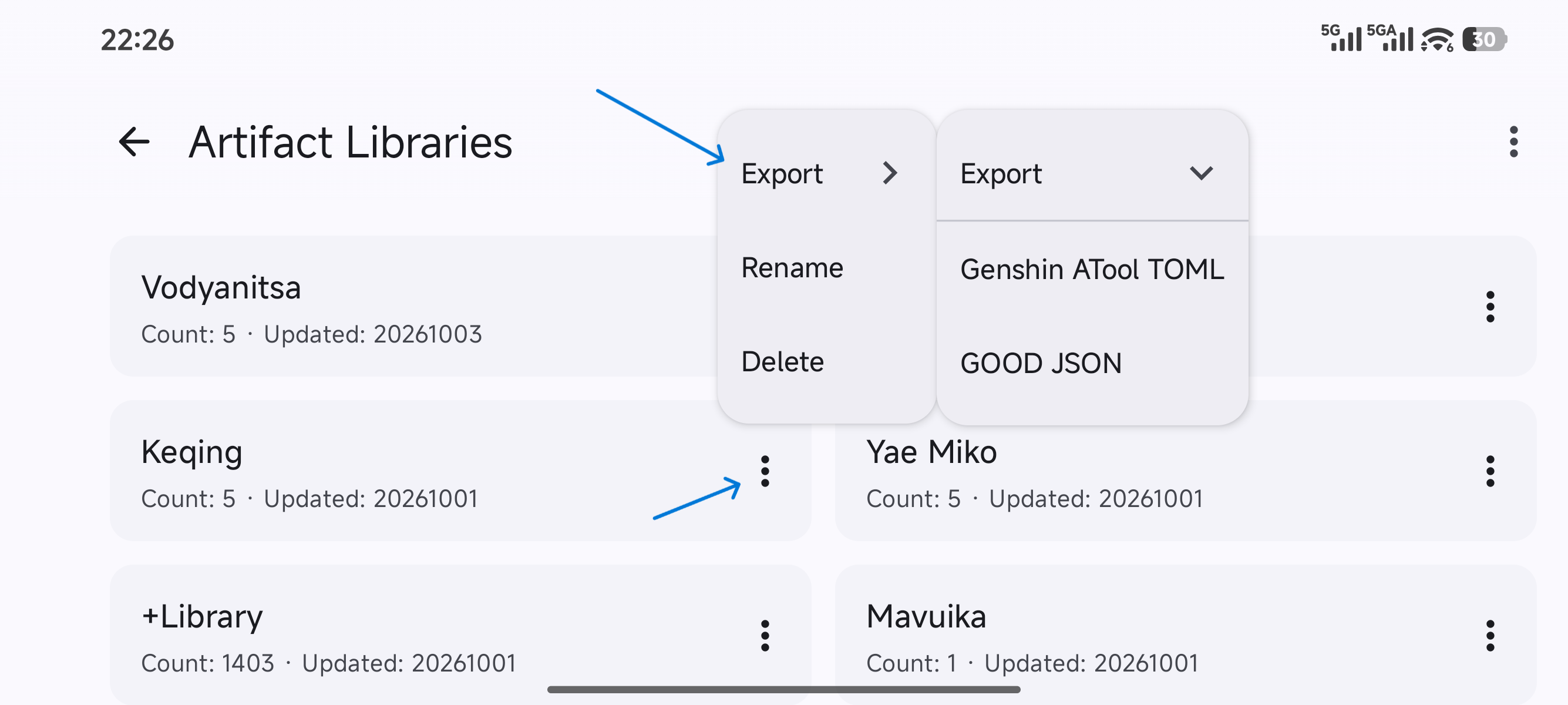
Artifact libraries store artifacts exported from your in-game inventory and record equipment sets for your builds. You can create multiple libraries as needed.
Importing Data
Section titled “Importing Data”The application automatically navigates and pages through your in-game inventory, using an OCR model to recognize screen contents and export artifact data. The recognition model currently supports English, Simplified Chinese, Traditional Chinese, and select Latin-script languages. If your game uses another language, please switch to a supported language in the game settings before scanning.
- Click Scan on the home page or inside an artifact library.
- Select the target artifact library and scan mode:
- Append: Stops automatically upon encountering an existing artifact, adding only newly acquired artifacts (in-game inventory must be sorted by acquisition time).
- Overwrite: Scans the entire inventory, completely replacing and overwriting all data in the target library.
- Follow the prompts to grant necessary permissions and start scanning (Android requires Floating Window and Accessibility permissions; Windows requires Administrator privileges).
- Switch to Genshin Impact and navigate to the Inventory > Artifacts screen.
- Click Start Scan. The app will automatically page through and record items. You can pause or stop the scan at any time.
You can import existing artifact data from external files:
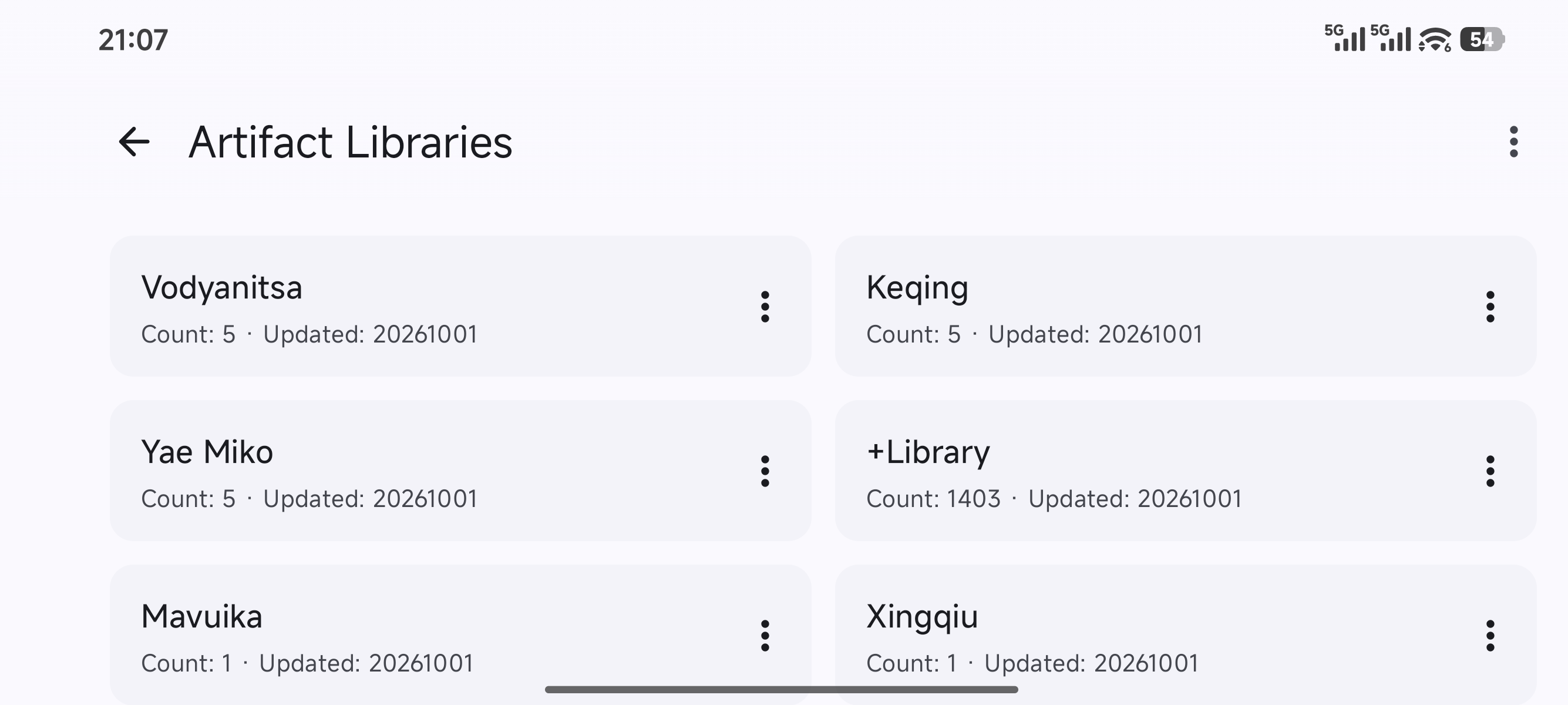
- Open the artifact library list page.
- Click File Import in the top-right menu.
- Select your file. The application supports the GOOD format (JSON) and Genshin ATool TOML format.
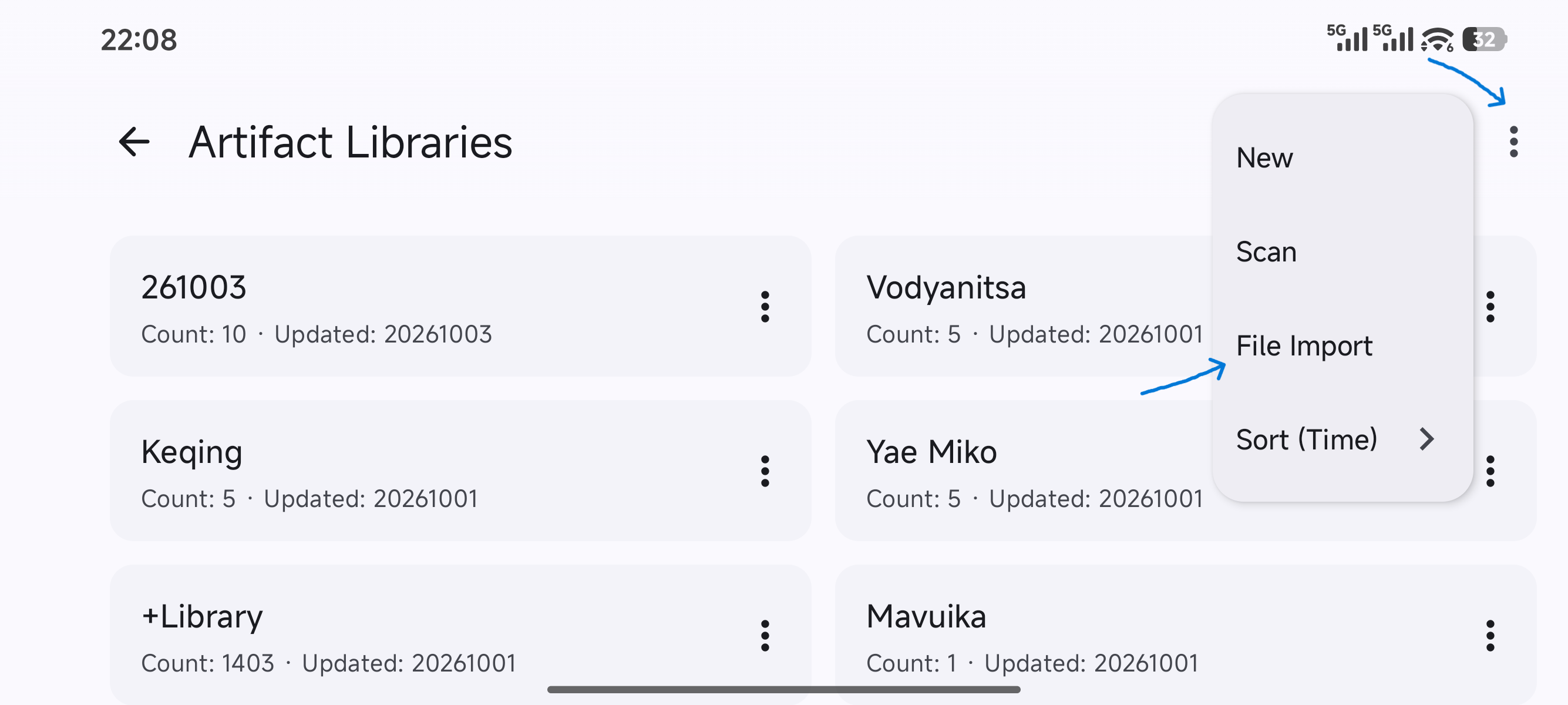
- Manual Add: Click the “+” button on the artifact library details page, then select the set, piece, main stat, and input sub-stats.
- Edit Stats: Click any individual artifact card to adjust enhancement level and fine-tune sub-stat values.
Exporting Data
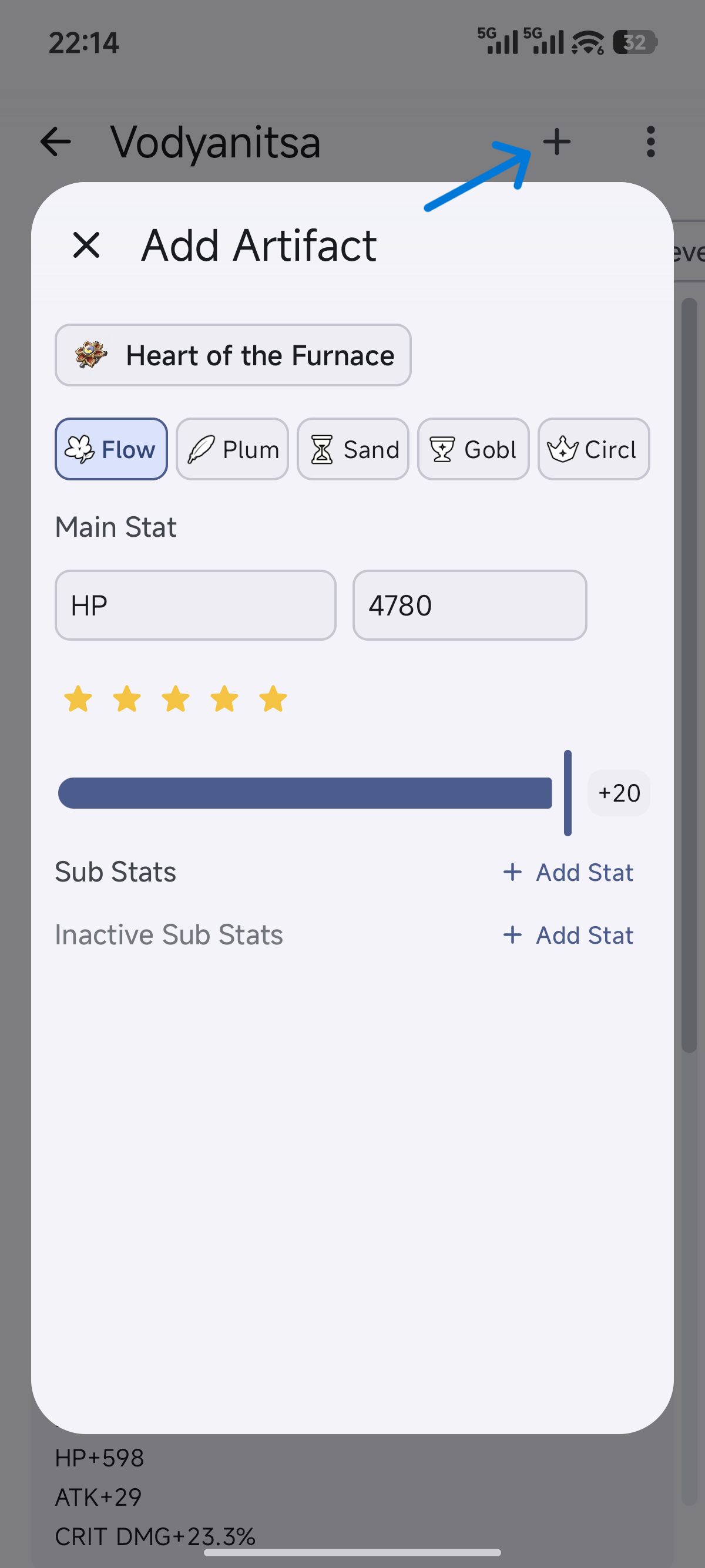
Section titled “Exporting Data”You can export artifact library data to a file:
- Export to GOOD Format: Export as GOOD format (JSON), making it easy to import into third-party tools like Genshin Optimizer.
- Export to TOML Format: Export as Genshin ATool TOML format for easy backup and migration between devices.