Build Optimizer
In the build optimizer, all configurations center around Actions. An action can be a specific skill’s damage instance or a target set of desired attributes. It combines base stats with various buffs. The optimizer supports fully customizable actions, and provides ready-to-use presets for specific characters to help you get started quickly.
Structure of an Action: Demo-Keqing
Section titled “Structure of an Action: Demo-Keqing”Taking the preset Demo-Keqing as an example, this action targets Keqing’s Elemental Burst “Starward Sword - Final Hit DMG”, with the elemental reaction set to Aggravate and the damage mode set to Expected DMG. Expected DMG factors in both CRIT Rate and CRIT DMG, representing average damage across repeated attacks to faithfully reflect real combat performance.
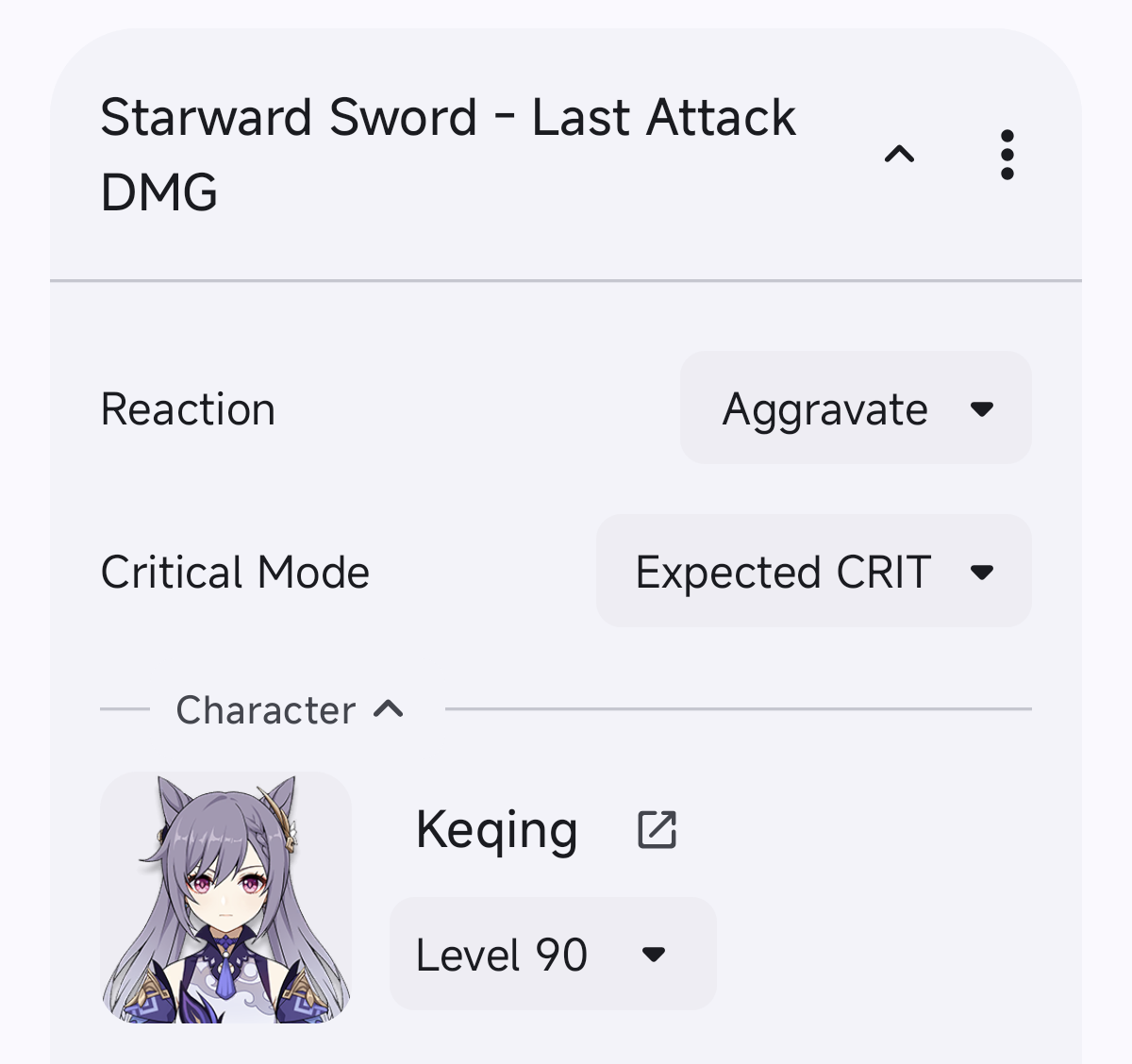
This action is assembled from four key components:
Character
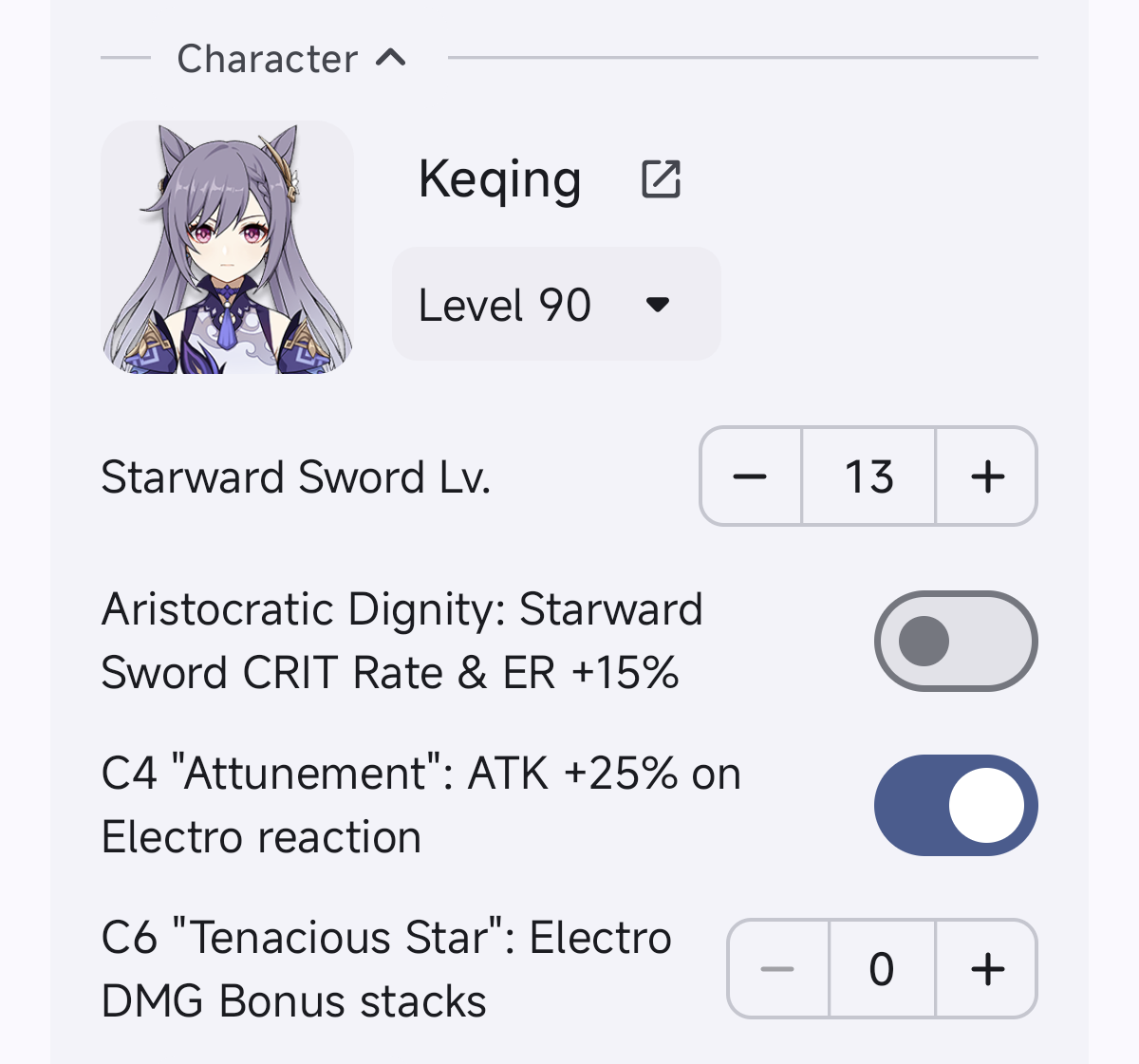
Section titled “Character”Configures base character attributes, active talents, and constellation states.
In Demo-Keqing, Keqing’s level (Lv. 90) and talent level (Lv. 10) determine base stats and skill multipliers. Passive talents and constellations (such as “Aristocratic Dignity” and C4 “Attunement”) act as character-exclusive buffs. Toggle them based on realistic trigger conditions: enable them if your rotation reliably triggers the effect, or leave them off otherwise.
Weapon
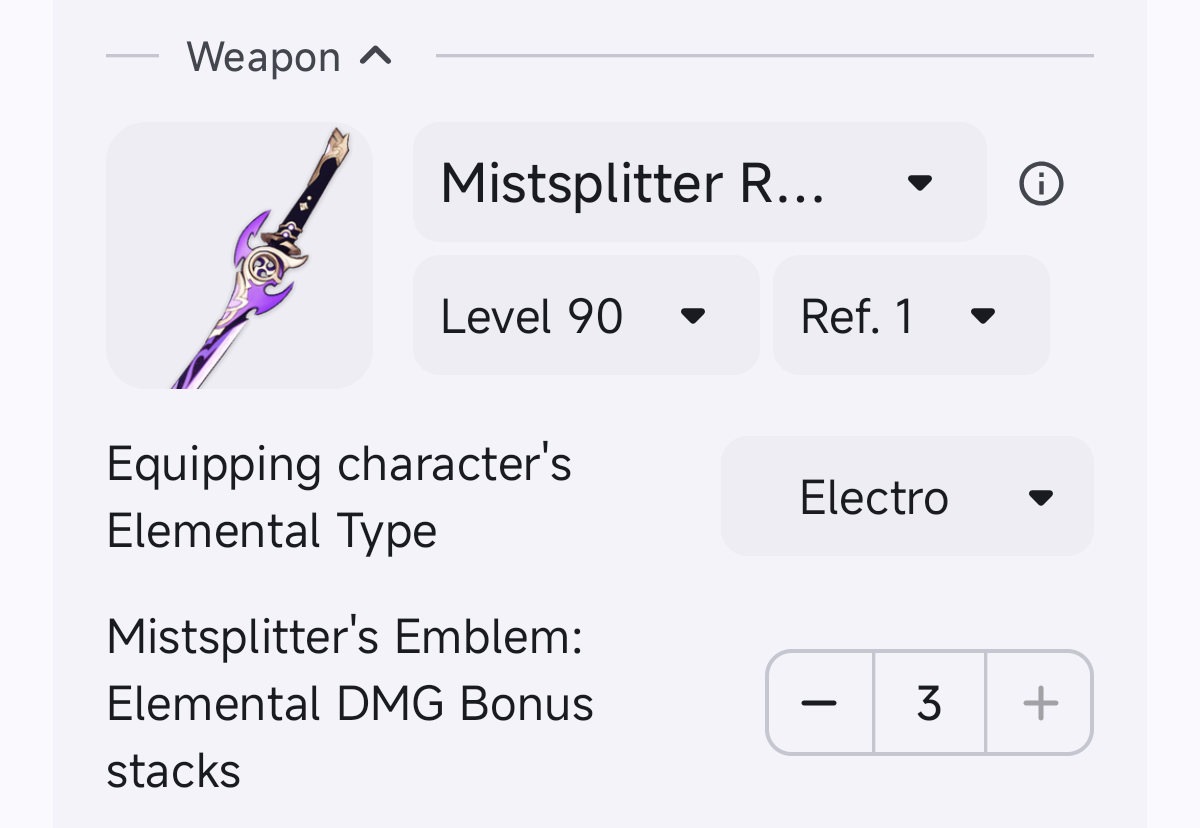
Section titled “Weapon”Configures base weapon stats and weapon passive states.
In Demo-Keqing, the weapon is “Mistsplitter Reforged”. Its level (Lv. 90) and refinement rank (R1) dictate base ATK and secondary stat bonuses. Weapon passives (such as character element type and “Mistsplitter’s Emblem” stacks) function as weapon-exclusive buffs. Configure them based on states you can maintain in combat: set stacks to 3 if you can maintain full stacks during burst windows, or enter your actual expected count.
Artifact Effects
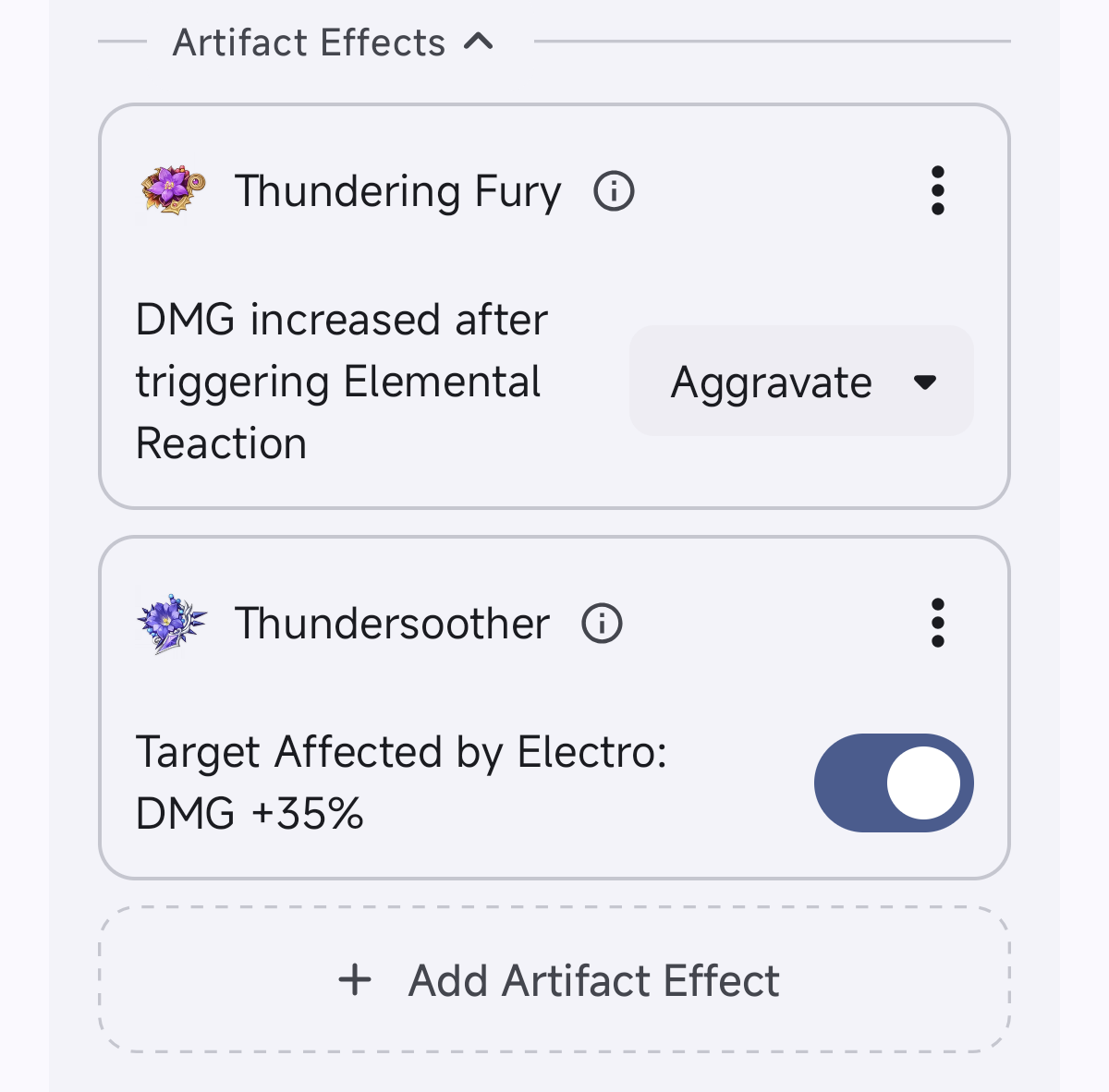
Section titled “Artifact Effects”Determines active set buffs for evaluated artifact combinations.
In Demo-Keqing, “Thundering Fury” and “Thundersoother” are configured. Set bonuses act as conditional buffs: when assembling matching sets, the optimizer decides whether to include bonuses (such as Thundering Fury 4-piece Aggravate DMG bonus or Thundersoother 4-piece DMG bonus). Toggle effects based on whether combat conditions can be met.
Adds extra external attribute bonuses to the action.
You can configure teammate skill buffs (such as ATK bonuses, DMG buffs, RES shred) and Elemental Resonance (such as Pyro Resonance ATK bonuses). If using a general weapon without built-in passives, you can also add its passive buffs here manually.
The more realistic and complete your buffs are, the more accurate the resulting artifact recommendation will be. In Demo-Keqing, this list is empty, calculating solo unbuffed damage. To see a configuration with full teammate buffs and resonance, refer to Demo-Skirk.
Calculation Settings
Section titled “Calculation Settings”After configuring actions, specify artifact selection rules via Calculation Settings:
- Candidate Artifact Libraries: Select which library to draw artifacts from.
- Excluded Artifact Libraries: Specify artifacts to exclude. If certain pieces are reserved by other characters and should not be used, create a dedicated library for that character and exclude it here.
- Set constraint: Restricts set matching rules, supporting “Any” (rainbow pieces), “4-piece”, “2+2”, or “2-piece”. Choosing “4-piece” significantly reduces the search space for faster calculations.
- Artifact Enhancement: Controls how unmaxed artifacts are handled. Choose “Keep current level”, or select “Expected enhancement” / “Random enhancement” to simulate unleveled artifacts at maximum level.
Viewing the Optimal Build
Section titled “Viewing the Optimal Build”Click Start calculation. The optimizer will evaluate combinations across your candidate library and pick the highest-damage current optimal build.
The results pane displays the build’s damage score, main and sub-stat distributions, and the five selected artifacts. If satisfied with this combination, click the top-right menu to save it to an artifact library.
Comparing Theoretical Maximum
Section titled “Comparing Theoretical Maximum”Besides viewing your current best build, you can manually select Theoretical Maximum from the “Comparison” dropdown below.
The optimizer calculates the theoretical limit under game rules independent of your current inventory. When selected, the panel displays how close your current build is to the theoretical ceiling and highlights sub-stat gaps to guide future farming.